One change to a live enterprise program could take two days, and only two people knew how to make it. I redesigned how Strategyzer’s program templates and live cohort deliveries stay in sync, and a full round of changes now takes about thirty minutes.
Role
Senior product designerThe only designer. I led the work end to end, from discovery to delivery.
Team
Me and one engineerWith our Head of Product advising
Timeline
About 3 monthsMy first project at Strategyzer
Status
Live
Click any image to see it full size.
At a glance
The problem
Strategyzer’s enterprise programs run with up to 20 client teams at once. Changing one after teams had started meant editing code by hand, repeating it for every team and checking every link. A full round of changes could take two to three days.
What I found
A long list of complaints came down to four causes. One explained most of the pain: once a cohort delivery started, it lost its connection to the template it came from.
The ideaTurning point
The program template is the single source of truth, and every cohort delivery chooses what to take from it.
What shipped
Four features built on that idea: template updates you review before applying, copying workspaces to many team projects at once, hiding and showing timeline events, and breadcrumbs inside workspaces.
Results
2d → 30m
for a full round of changes to a live cohort delivery
4h → 20m
to copy workspaces to every team
9.5/10
satisfaction from six of our most frequent users
6 figures
enterprise deals supported by faster, more reliable delivery
One change, twenty copies, two days
Building a program was manageable. Changing one after teams had started was not.
Strategyzer runs strategy programs for large companies. A small team of program designers builds each one from playbooks, which mix learning content, exercises and shared workspaces where teams do the work. A single program can have 10 to 20 client teams working through it at once.
Every program has four layers, and the moment a cohort delivery was created, they stopped talking to each other.
1 · Program template
The reusable programTimeline and workspaces
Link lost once it’s created
2 · Cohort delivery
One client’s live run of the programCreated when a client books it
3 · Team projects
One per teamUp to 20 at once
4 · Workspaces
Where teams workLinked by exact name
In the product, a cohort delivery’s timeline is called its playbook instance, so you’ll see that name in the screens below.
Programs change while they’re live. An exercise doesn’t land, a presentation gets reworked overnight, or a client asks for something new on day two. So a coach’s two-minute decision turned into four jobs:
Update the template, so it stays clean for the next client.
Edit the cohort delivery’s settings by hand, in code, because the admin couldn’t see anything added after the delivery was created.
Repeat that edit for every team, all 10, 15 or 20 of them.
Open every team’s workspaces to hunt for broken links.
“If there’s a 12-team cohort and there’s changes, it ends up being 2 to 3 days sometimes.”
Kurt Bostelaar, Program Designer
What watching the work revealed
The workarounds nobody mentioned
I didn’t ask people what they wanted. I asked the program designers who ran deliveries most often, especially Kurt and Latif, to share their screens and walk me through a real program from start to finish. At every step I asked what it was for, and why it happened there. I also spoke with Dora in customer success, who heard clients’ complaints first, and with Alex, our CEO, who runs live deliveries with clients.
“I literally sometimes spend 2 to 3 days just copying stuff around.”
Kurt Bostelaar, Program Designer
Watching the work showed habits so routine that nobody thought to mention them:
Deleting to hide
Later timeline events were deleted so teams couldn’t see them yet, then pasted back from the template when it was time.
Doing everything twice
Every change was made in the template and in the cohort delivery, because copying it back later could drag client data into the template.
Building around the system
A whole separate program was built just so teams could share one workspace.
Checking every link by hand
Before each session, every workspace for every team was opened, because at least one link was almost always broken.
The discovery board. Interview synthesis, a journey map, screen-by-screen audits of the program editor and admin, and the opportunity solution tree. Click to see it full size.
Many symptoms, four causes
Cause 1
The template and the cohort delivery lost touch
Once a cohort delivery was created, it had no link to its template, so every improvement was carried across by hand.
Cause 2
Effort grew with every team
One decision became 20 edits, and each edit was another chance for a mistake.
Cause 3
Staying safe meant deleting things
The only way to release content in stages was to remove it.
Cause 4
Everything depended on a name
Timeline events found their workspaces by exact name, so one stray space or a leftover “Copy” sent a team to a dead end. That one detail explained the broken links, the code edits and the fear of renaming anything.
Underneath it all
Program designers had two jobs at once: keep the live delivery moving, and keep a clean template ready for the next client. The platform made them do both by hand.
Together, this made a process only experts could run, while the business wanted coaches, partners and eventually clients to run programs themselves.
One idea to hold it together
The platform didn’t need more controls. It needed one simple rule that people could understand at a glance:
The program template is the single source of truth, and every cohort delivery chooses what to take from it.
Four principles followed from that:
Change it once
Effort should never grow with the number of teams.
Stay in control
Nothing is forced onto a live delivery.
Nothing is destructive
Hiding replaces deleting, and every action can be undone.
Always know where you are
In a platform this deep, knowing where you are is a feature.
Choosing what not to build
With one engineer and three months, I ranked every opportunity by three questions: How often does it happen? Would a failure be visible to clients? Can we build it well in the time we have? Changing live programs came out on top on all three. The opportunity solution tree below shows how it all fits together.
Built in this release
Changing live programs
Template updates, reviewed and applied
Copying workspaces to many team projects at once
Hiding and showing timeline events
Breadcrumbs inside workspaces
Agreed for later phases
Mapped, prioritised and shared
The e-learning course system
Exercise tracking
A library of reusable exercises
How playbooks and projects are organised
Making the trade-offs visible kept the release focused, and nobody felt their problem had been ignored.
The opportunity solution treeFrom the outcome we wanted, to the opportunities, to possible solutions. It’s in two parts: switch between them with the tabs.
Changing live programs: all three opportunities shipped in this release. Click to see it full size.
Four features, one model
Each feature puts one of the principles into the product. Together they work as one job: send the workspaces, bring the updated timeline into the cohort delivery, then choose when teams see it. Kurt called the result “a MASSIVE game changer”.
1. Template updates, reviewed and applied
PrincipleStay in control
The heart of the redesign. It reconnects the template and the cohort delivery, ends the double work and takes code out of the job.
Before
Every template change was carried into each cohort delivery by hand, by editing its settings in code. A new workspace stayed invisible to the timeline until someone typed its exact name.
Now
Cohort deliveries are told when their template changes. Program designers review each update and choose to apply or ignore it, and any new workspace they accept appears in the delivery’s timeline, ready to link.
A strategic call
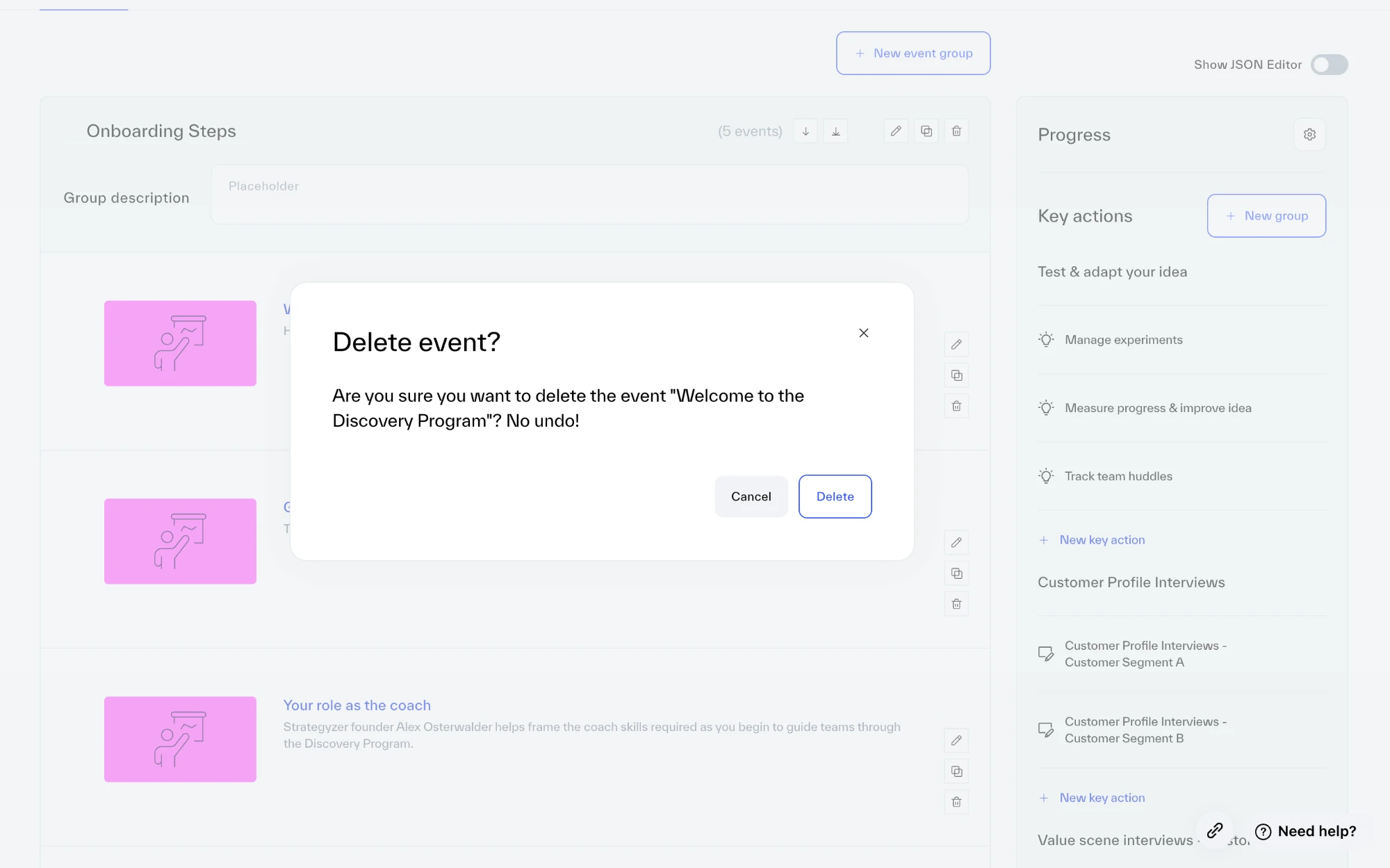
Review, not automatic sync. Syncing template changes into every cohort delivery automatically was an option. It would have saved a step, but it would also have changed a live client program without anyone choosing to. So I designed a review step: every update waits until the people running the delivery decide what to apply and what to ignore.
1Before
2After
3The designsClick a tab to see each screen and the decisions behind it
Hover a decision to see it in the designTap a decision to see it in the design
Hover a decision to see it in the designTap a decision to see it in the design
Hover a decision to see it in the designTap a decision to see it in the design
Hover a decision to see it in the designTap a decision to see it in the design
Update notice: The notice on the cohort delivery’s timeline that the template has changed
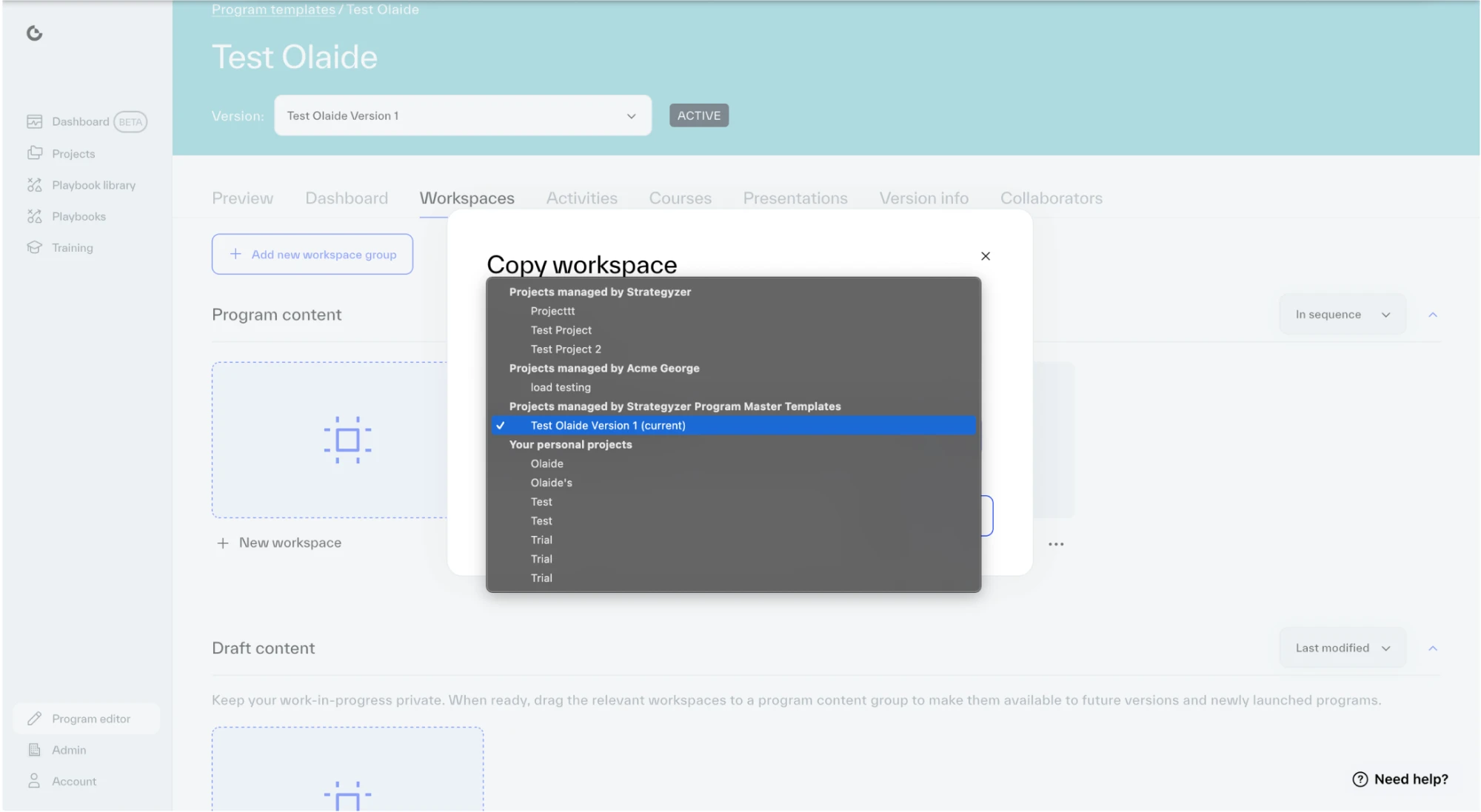
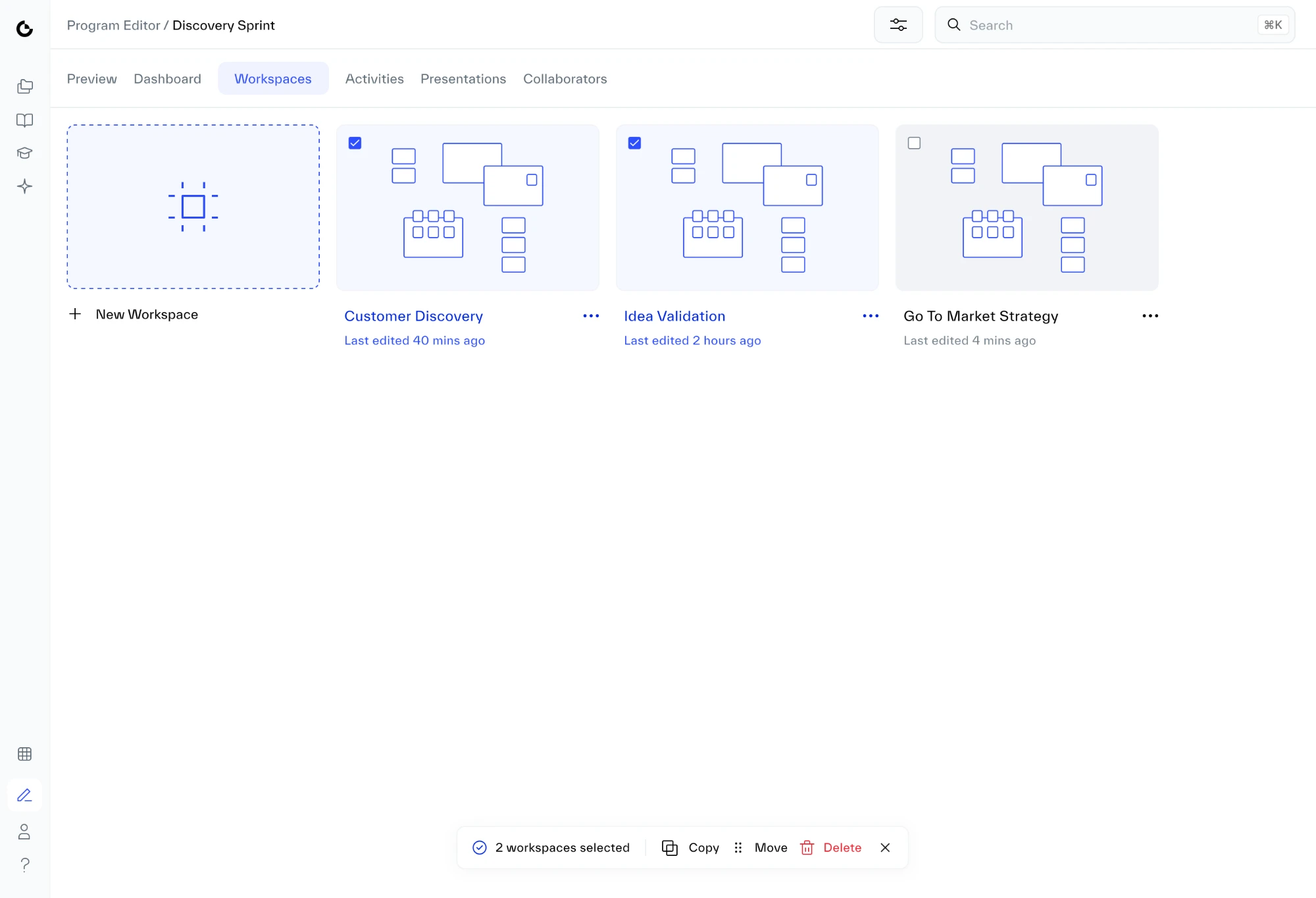
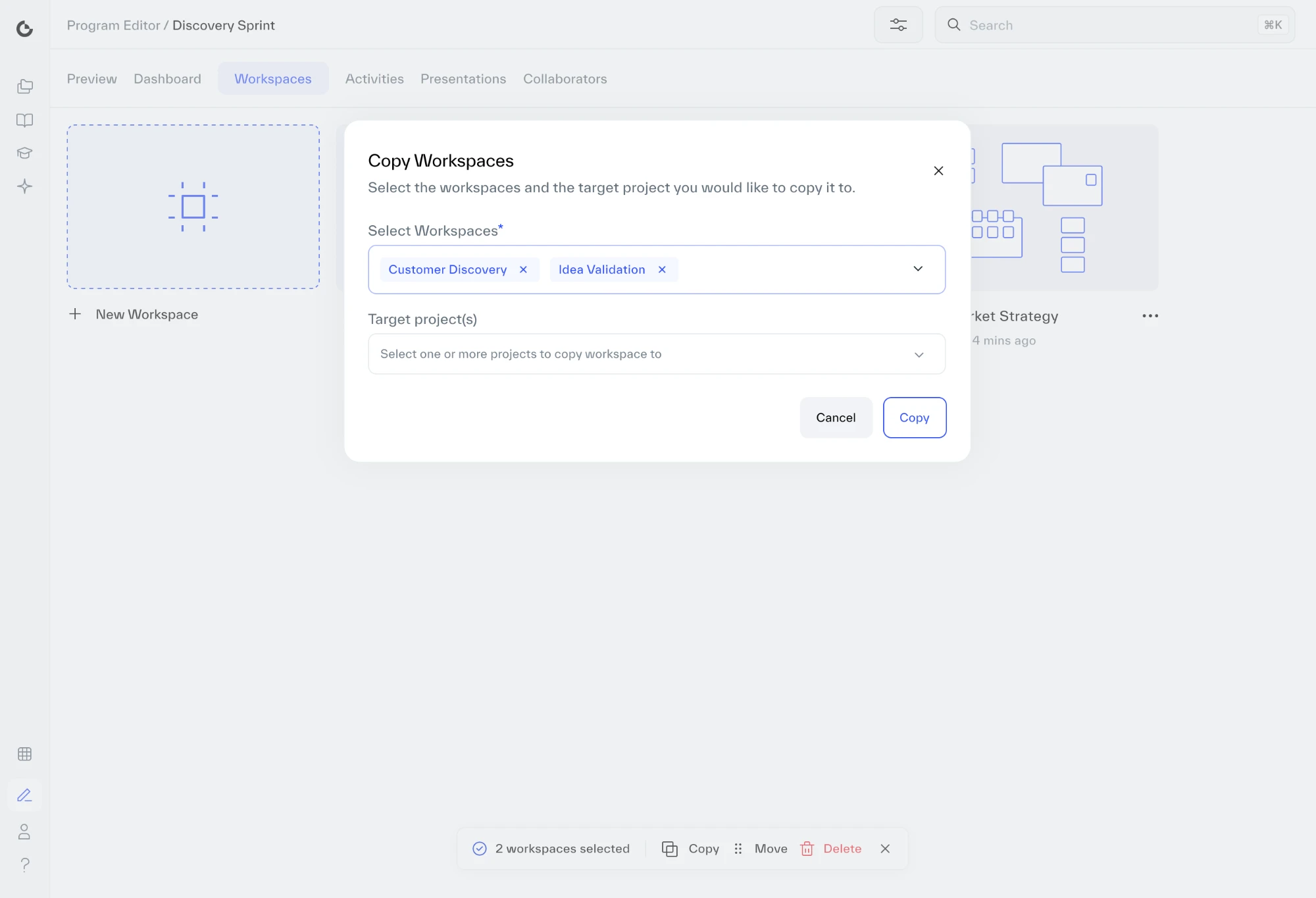
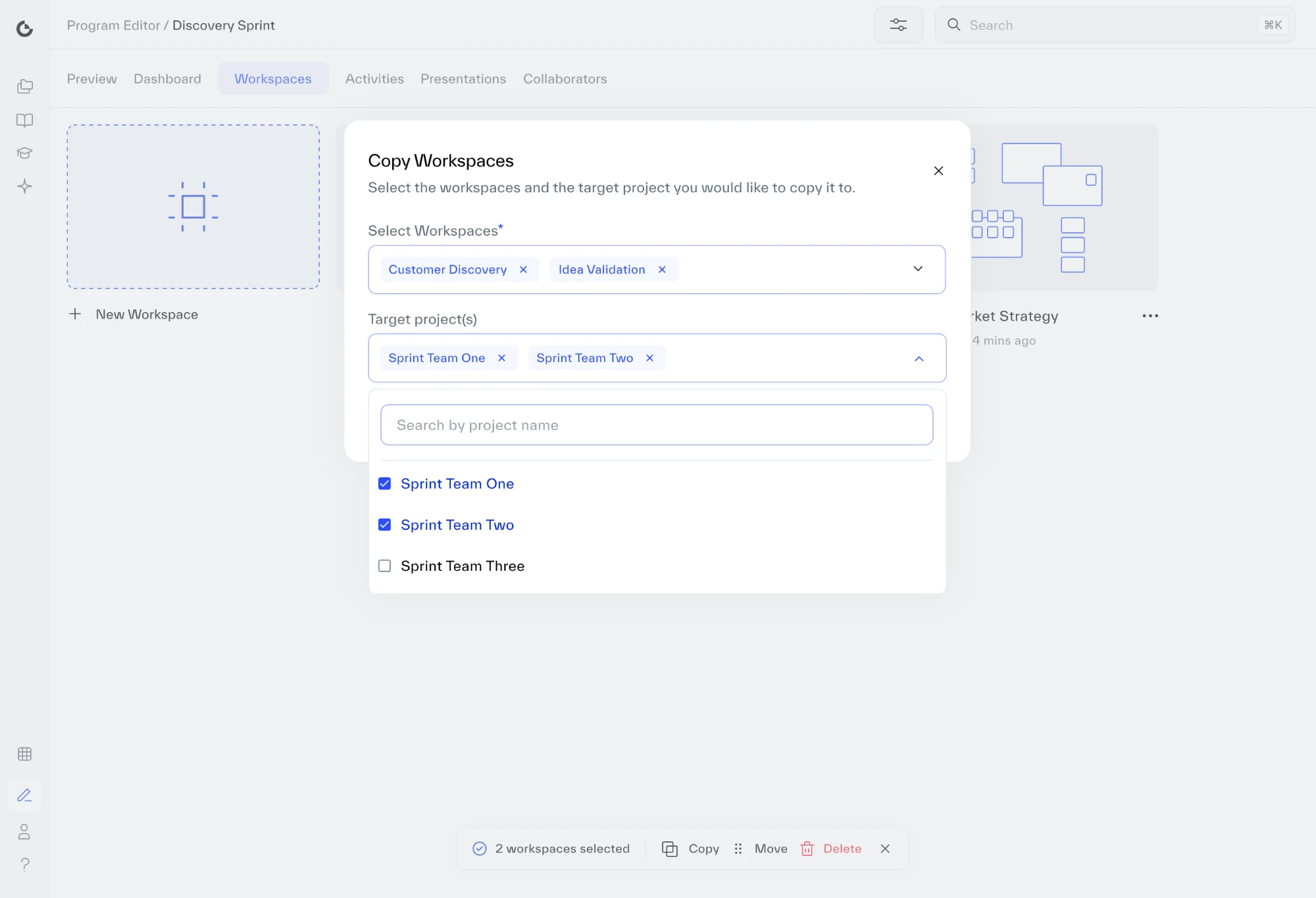
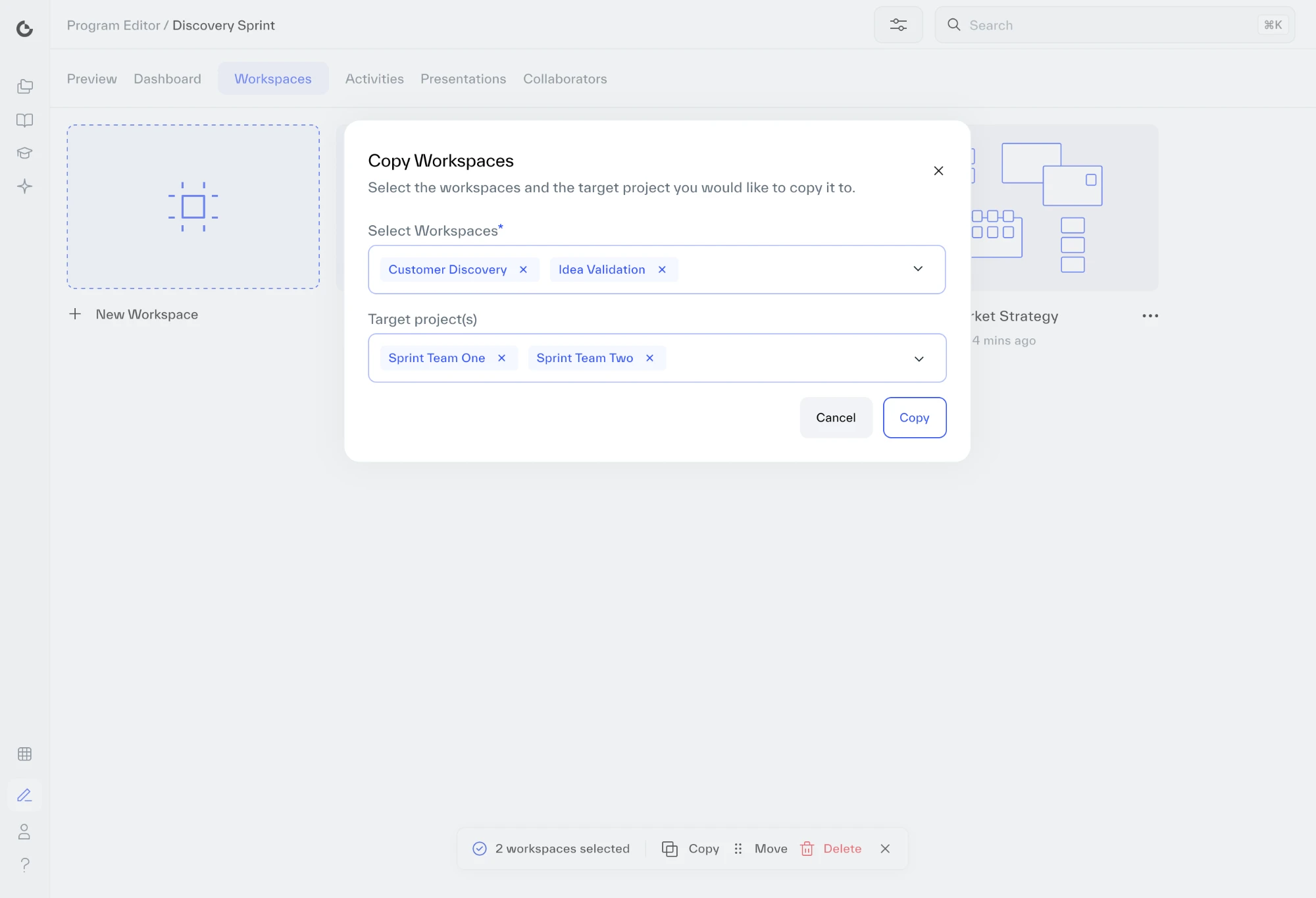
2. Copy workspaces to many team projects at once
PrincipleChange it once
Before
One workspace could go to one team project at a time. Twenty teams meant doing it twenty times, for every workspace.
Now
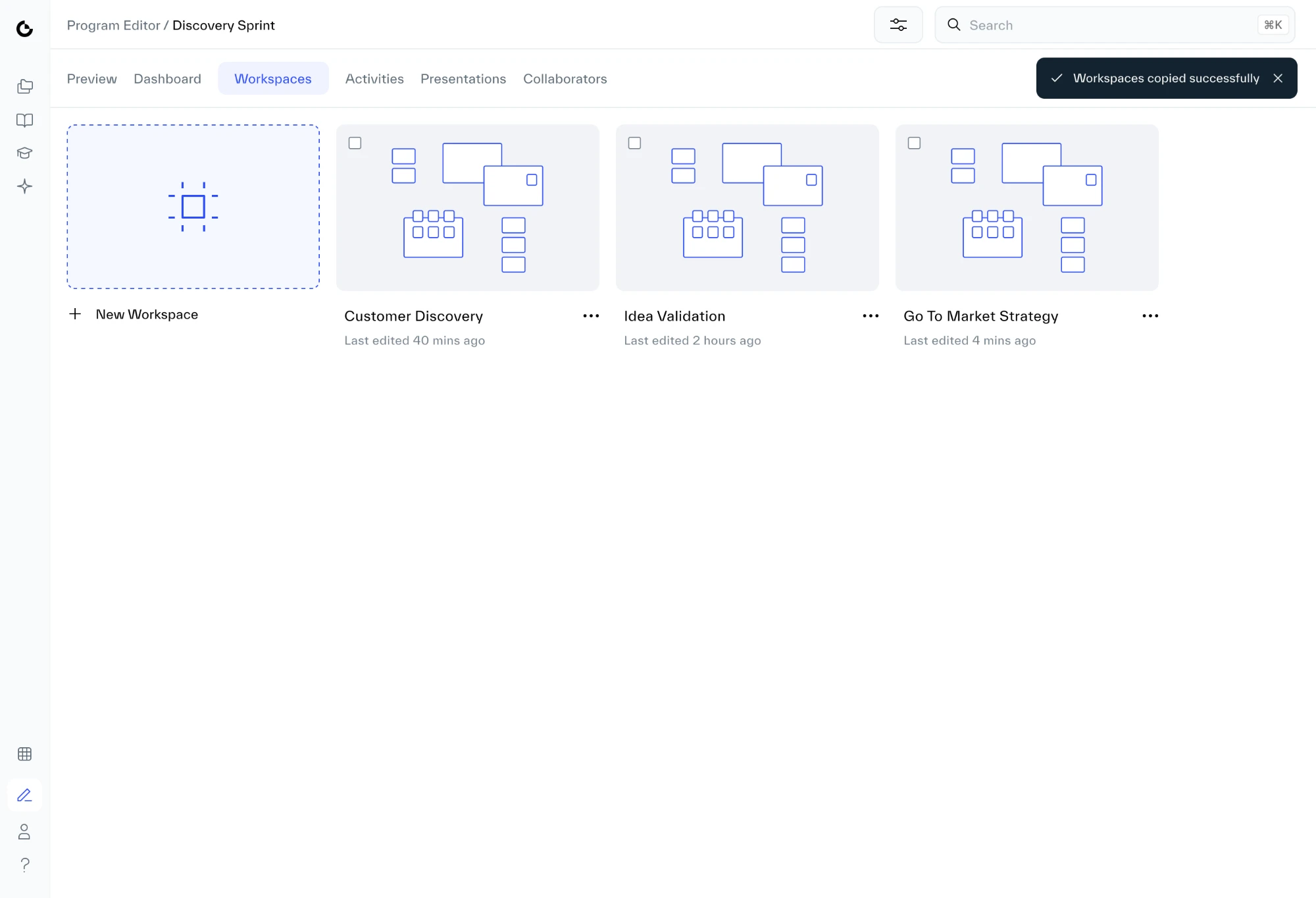
Pick several workspaces, search for the team projects, and copy them all in one action.
1Before
Hover a problem to see it in the designTap a problem to see it in the design
2After
3The designsClick a tab to see each screen and the decisions behind it
Hover a decision to see it in the designTap a decision to see it in the design
Hover a decision to see it in the designTap a decision to see it in the design
Hover a decision to see it in the designTap a decision to see it in the design
Hover a decision to see it in the designTap a decision to see it in the design
Hover a decision to see it in the designTap a decision to see it in the design
Select workspaces: Ticking several workspaces at once
3. Hide and show timeline events
PrincipleNothing is destructive
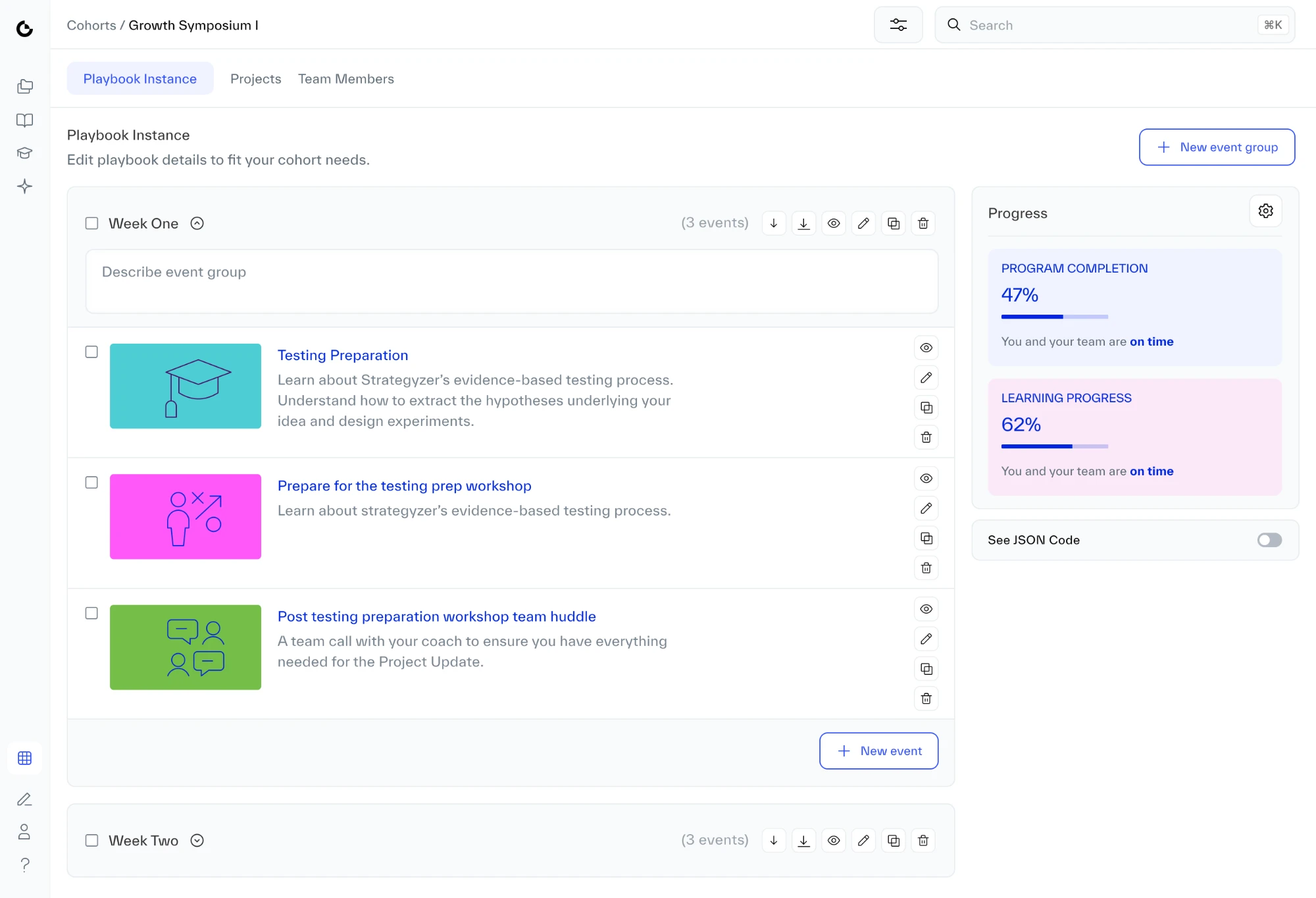
Before
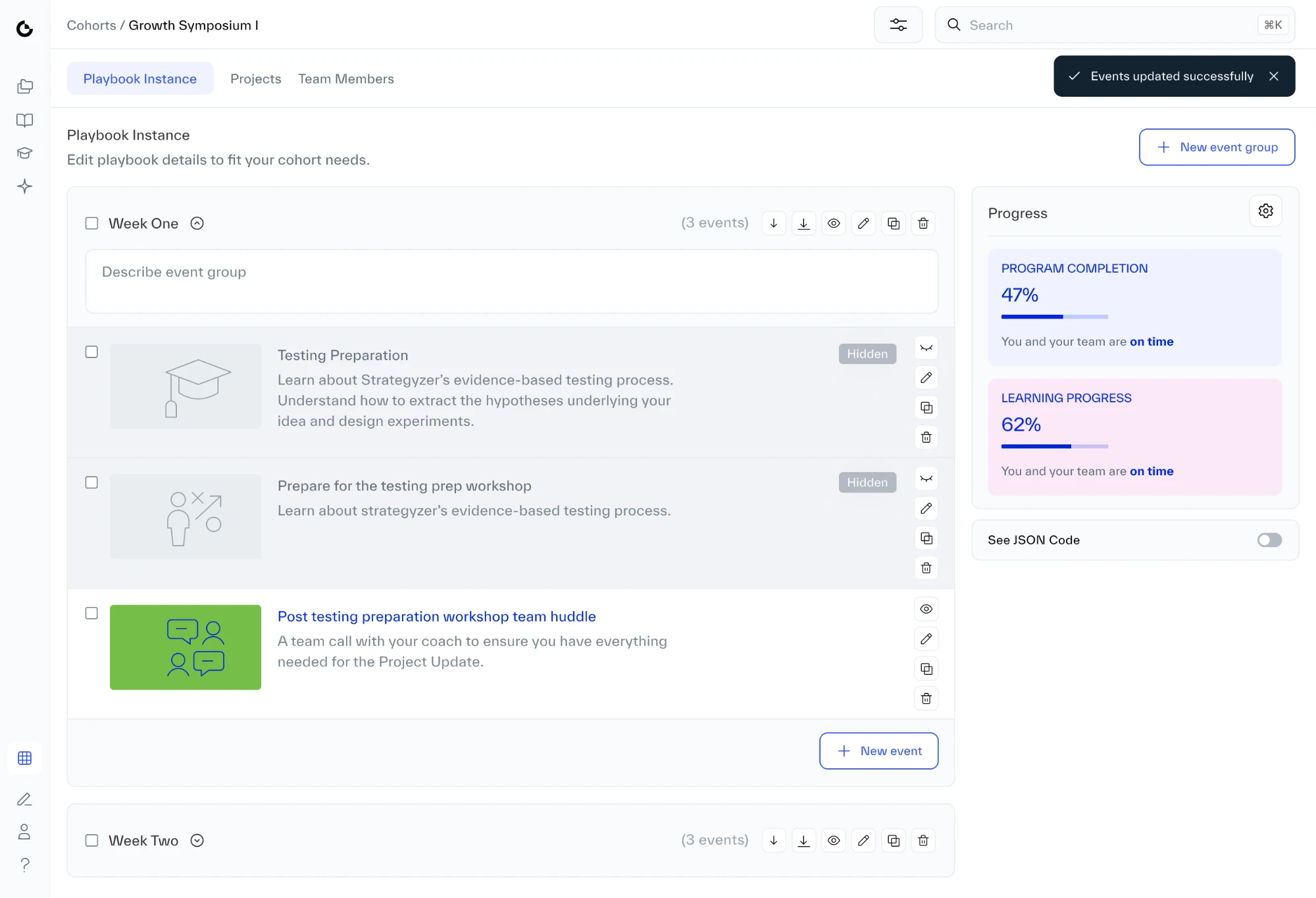
Releasing content in stages meant deleting events, with no undo, then pasting them back from the template’s code when it was time.
Now
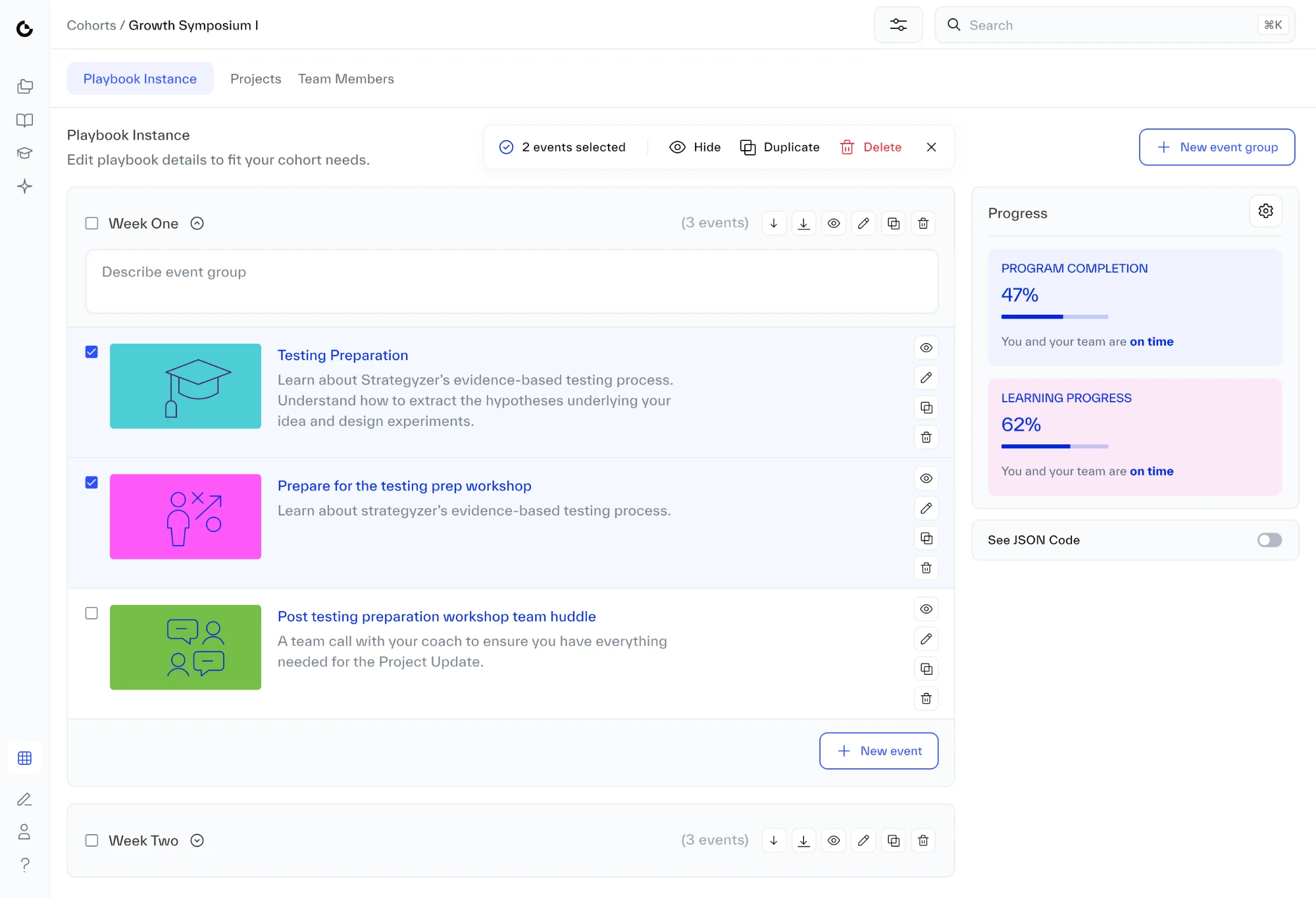
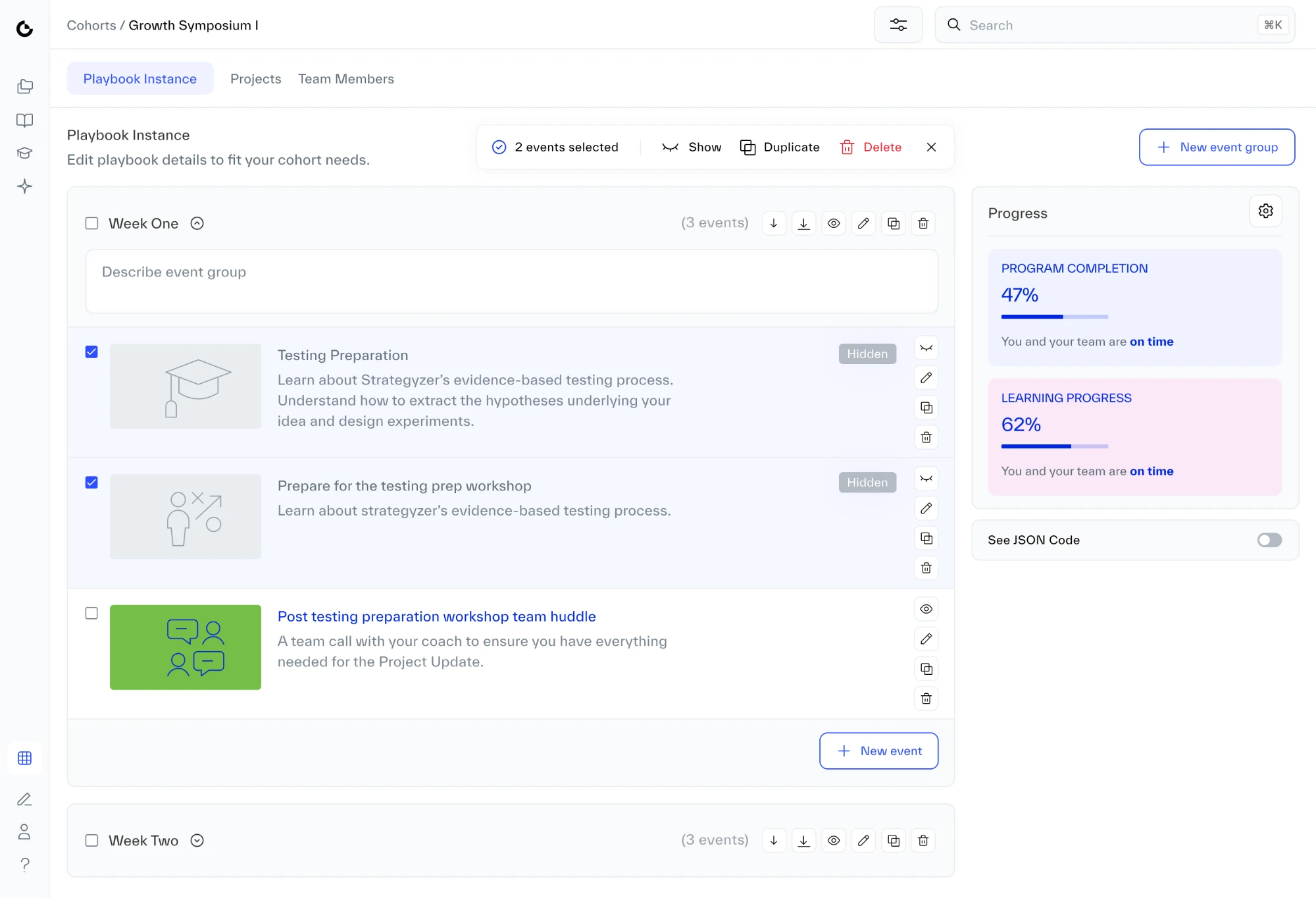
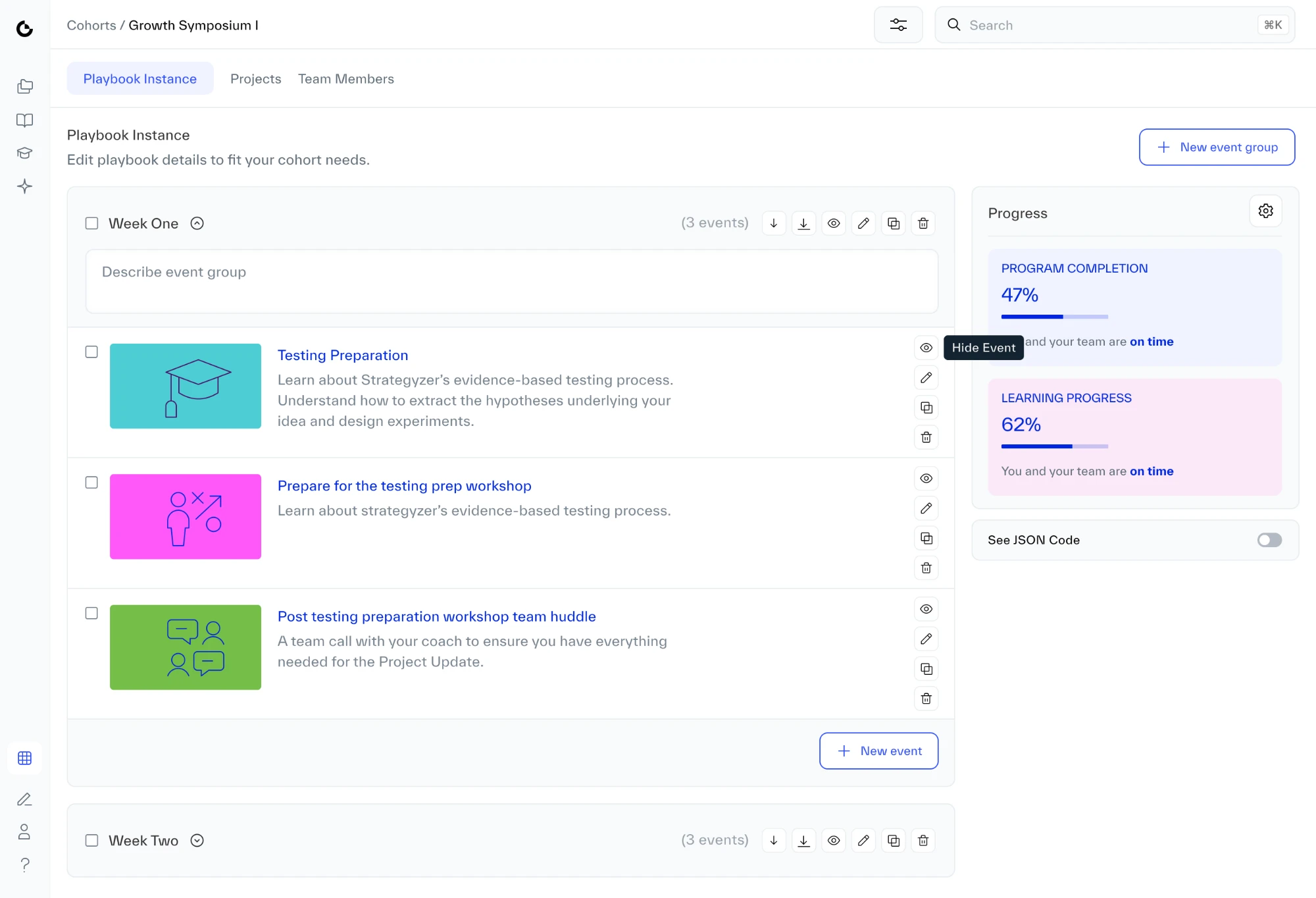
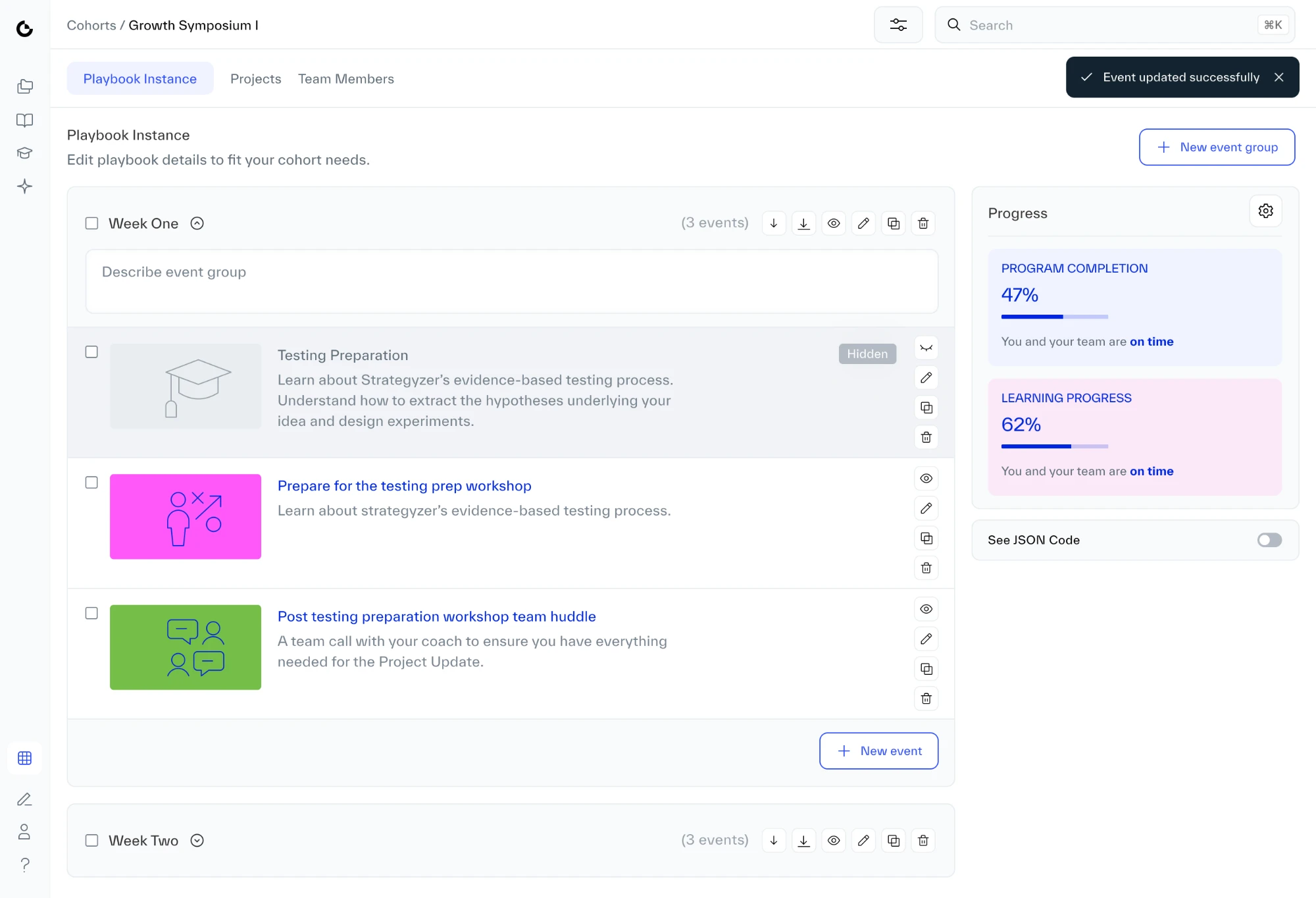
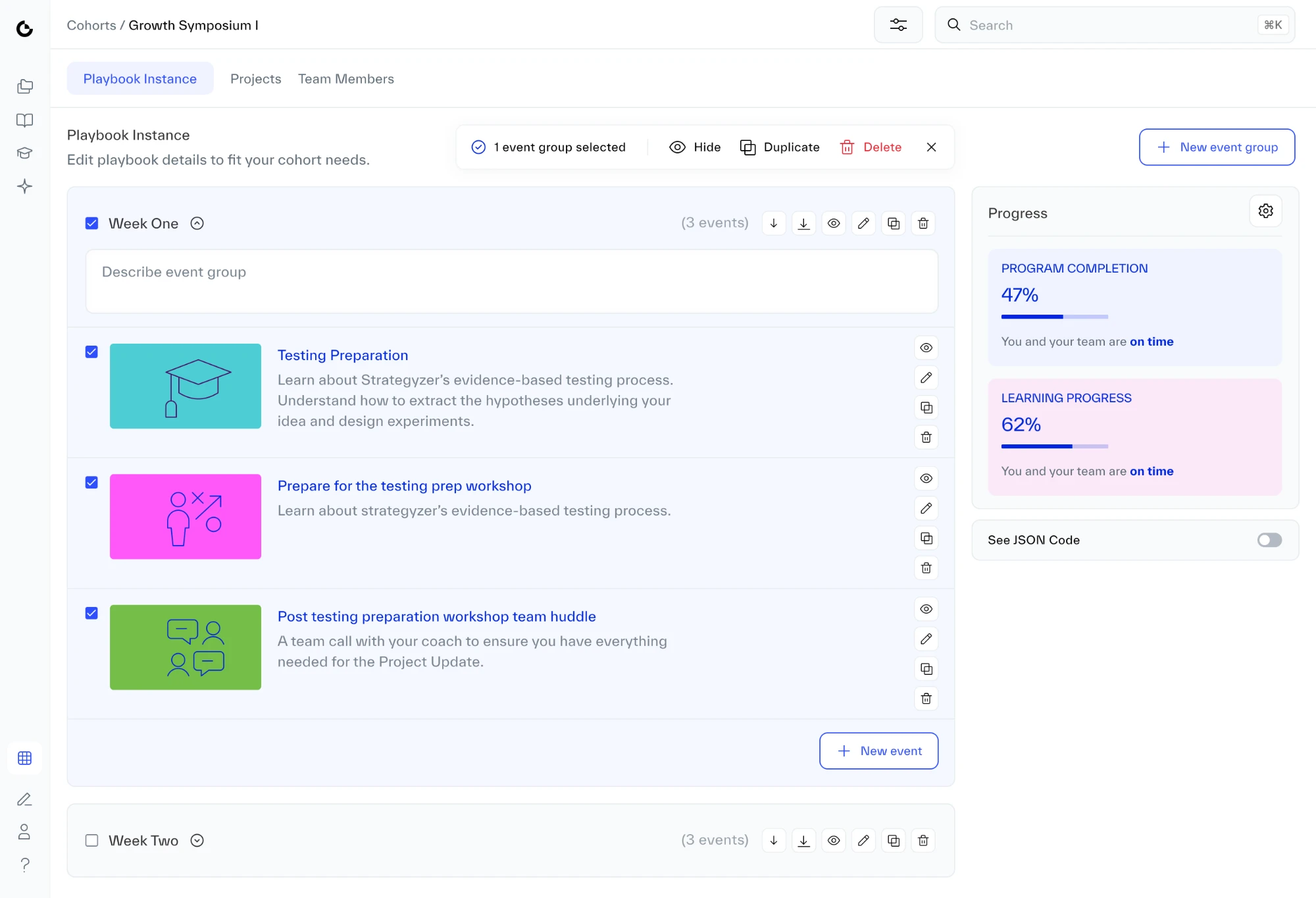
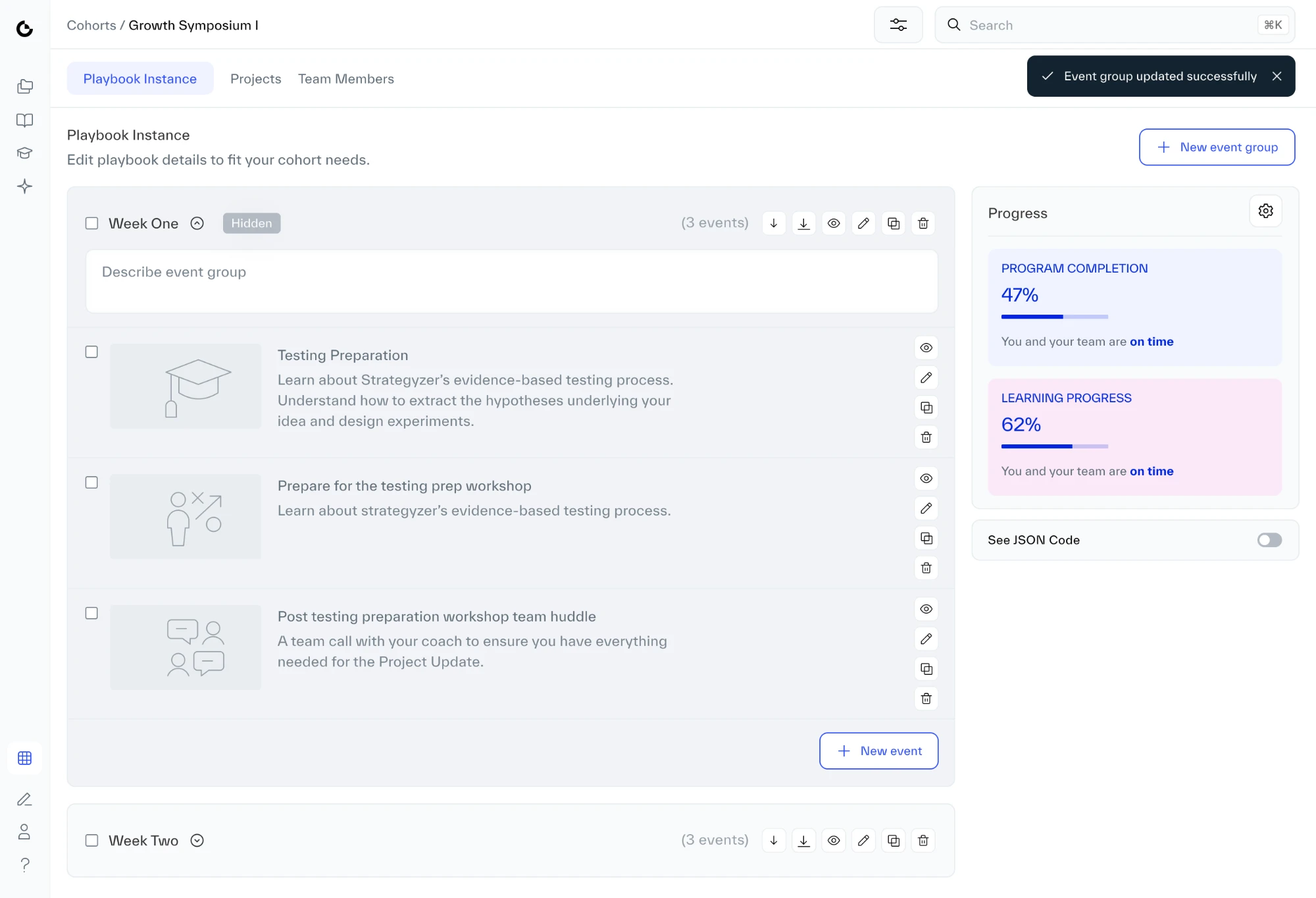
Program designers build the whole program up front, then hide or show one event, several at once or a whole week, and keep editing while they’re hidden.
1Before
Hover a problem to see it in the designTap a problem to see it in the design
2After
3The designsClick a tab to see each screen and the decisions behind it
Hover a decision to see it in the designTap a decision to see it in the design
Hover a decision to see it in the designTap a decision to see it in the design
Hover a decision to see it in the designTap a decision to see it in the design
Hover a decision to see it in the designTap a decision to see it in the design
Hover a decision to see it in the designTap a decision to see it in the design
Hover a decision to see it in the designTap a decision to see it in the design
Hover a decision to see it in the designTap a decision to see it in the design
Hover a decision to see it in the designTap a decision to see it in the design
Timeline: A cohort delivery’s timeline before anything is hidden
4. Breadcrumbs inside workspaces
PrincipleAlways know where you are
Before
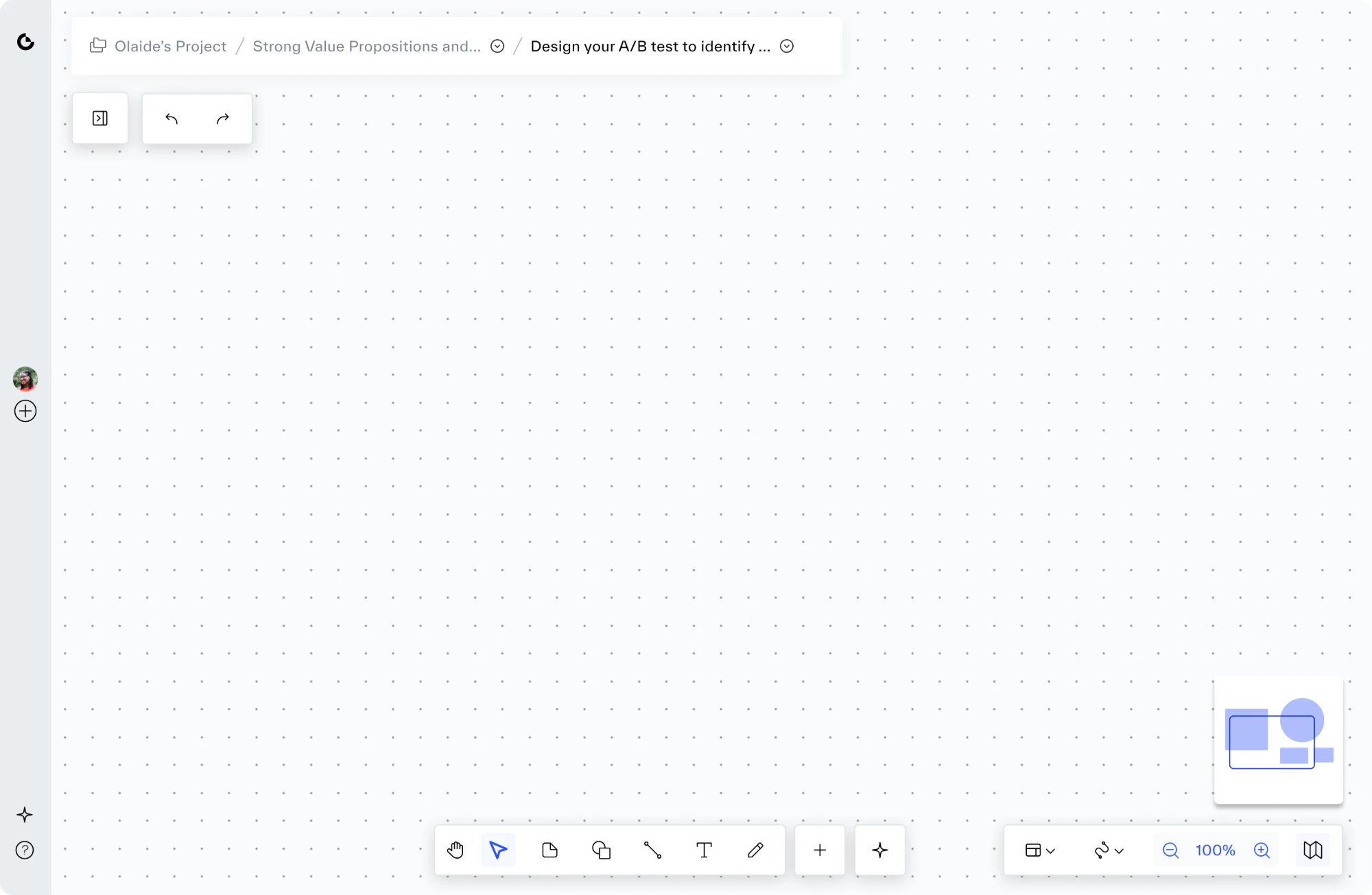
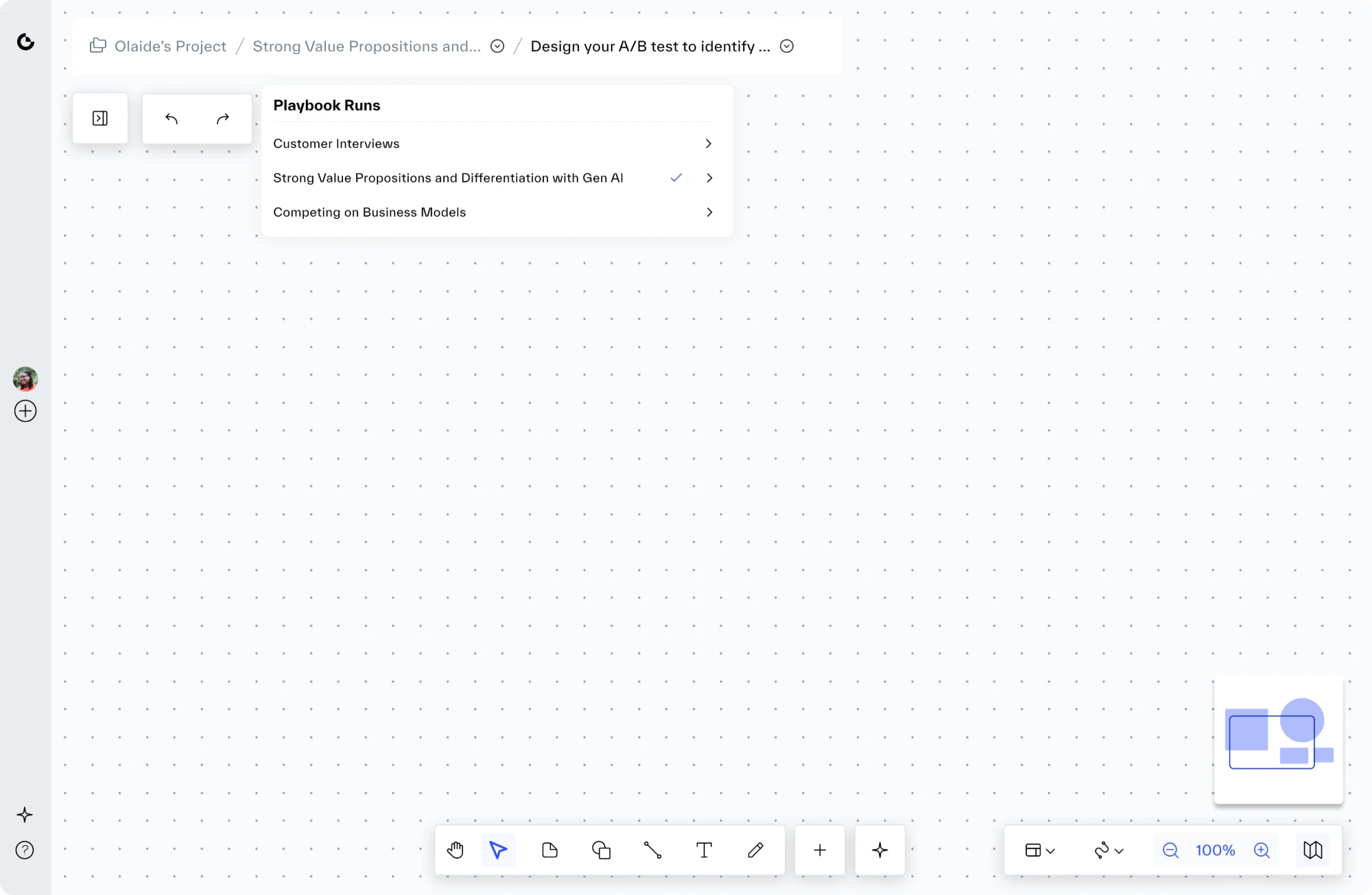
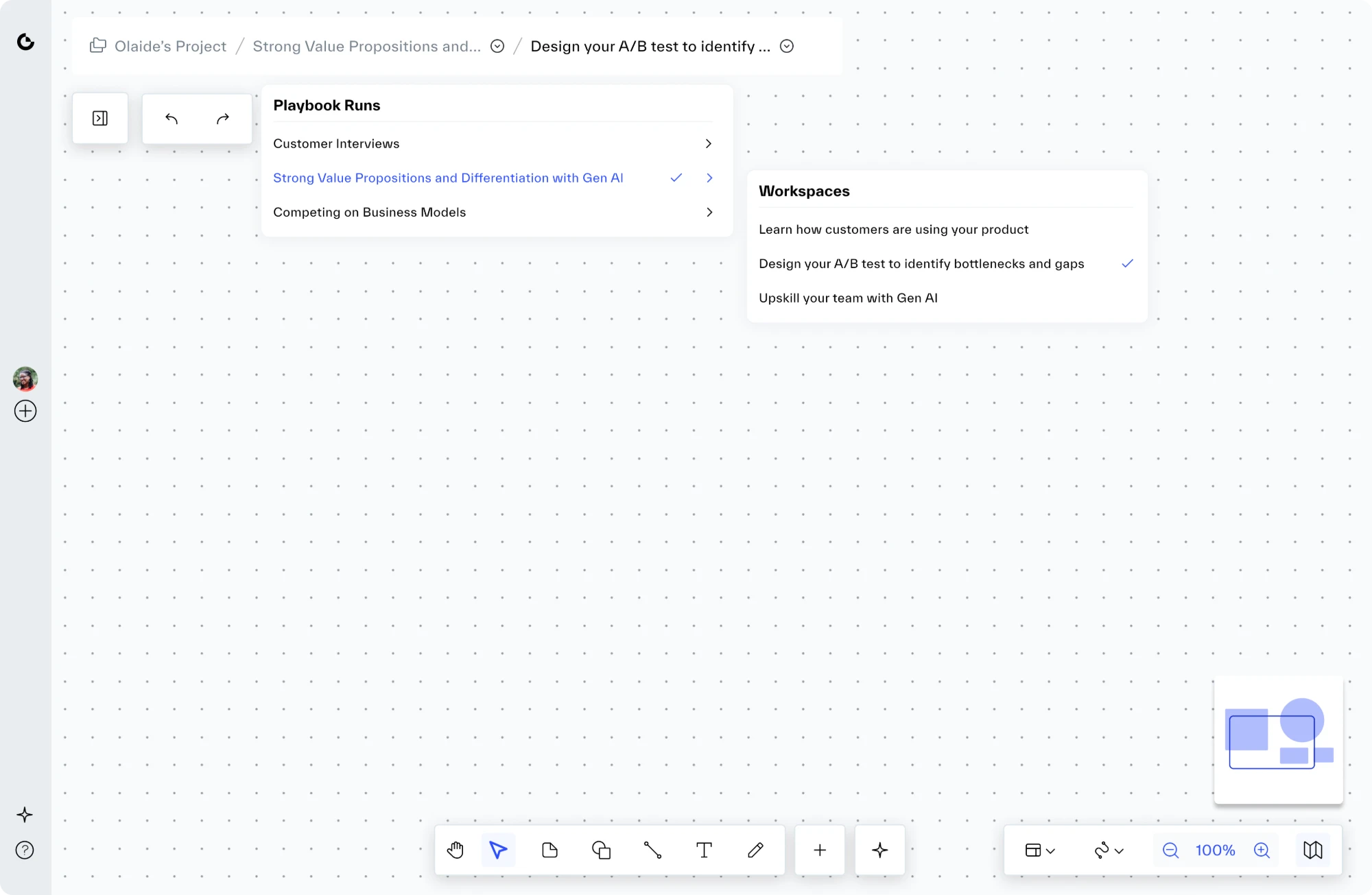
Inside a workspace there was no navigation. To reach another one, you clicked the Strategyzer logo to get back to the project, picked a run, then picked a workspace. Even our CEO got lost inside custom playbooks.
Now
Every step of the breadcrumb is a menu. From inside a workspace you can reach any workspace in the run, or any run in the project, without going back. Alex and Carol both called it out.
1Before
Hover a problem to see it in the designTap a problem to see it in the design
2After
3The designsClick a tab to see each screen and the decisions behind it
Hover a decision to see it in the designTap a decision to see it in the design
Hover a decision to see it in the designTap a decision to see it in the design
Hover a decision to see it in the designTap a decision to see it in the design
Breadcrumbs: The path at the top of every workspace
Tested with the people who do the work
I tested with six of the people who deliver programs most often, a mix of program designers and coaches, using scenarios from real deliveries. The response was strongly positive. It confirmed the core decisions, including reviewing updates before they apply, and helped us decide which parts of the opportunity tree to take on next. I stayed with the work through the build and kept gathering feedback for months after launch.
9.5/10
average satisfaction across six program designers and coaches
Days back on every delivery
Program designers got days back on every delivery, and the business could promise more.
Changing a live delivery
2 days → 30 min
for a full round of changes
As reported by program designers
Copying workspaces
4 hrs → 20 min
to send a set of workspaces to every team
From Kurt’s message below
Satisfaction
9.5/10
average score
Six of our most frequent users
Business
6 figures
enterprise deals supported by faster, more reliable delivery
Per enterprise program
How we measured: the times are what program designers reported for their own workflows. Satisfaction comes from a small internal test on a 10-point scale.
People also reported fewer mistakes and more confidence in what they sent to clients.
What the team said
Straight from Slack, in their own words. Click any message to see it full size.
Heard at a live client event
“The UX has improved”
What participants said during an enterprise client’s workshops, reported by the program designer and coach who ran them. The platform, including the new admin, held up through a full day of live changes. Kurt, who had been nervous about the platform during live events for years, used the new admin all day to change the program on the fly.
Program Designer, with a reply from a Strategyzer Coach
Kurt Bostelaar: Massive credit to @developers and @product-team as the platform performed fantastically at the [enterprise client] workshops. I think I carry anxiety with the platform during live events because years back it always had issues. but thoroughly impressed that it never once got in the way of allowing the teams to work and was great how it helped virtual attendees participate with those in the room. I feel like having the admin feature, the program editor, and the improved UX all came together to allow us to customize on the fly changes that served the teams with where they were at. I found myself constantly throughout the day using the admin feature, the program editor and workspaces and it was truly a light bulb moment for me to see how powerful our platform has become. hats off team for all the work that has gone into getting the platform to this point! Augustin Solioz replied: @developers @product-team This was even mentioned by participants who engaged with the platform during several [enterprise client] events “The UX has improved”. The platform is now a reliable tool that enable us to deliver with confidence during in-person and hybrid events without having to onboard them into how to use it!!
What changed for them
Program Designer
Cheers to @product-team and @developers - I used the copy workspaces feature just now and it literally allowed me to do in 20 minutes with Augustin what would have taken me at least 4 hours in the past. HUGE game changer
Program Designer
Cheers to @developers @product-team. I was on a call with @Latif earlier and we both could NOT believe the features (hide timeline events, transfer sets of workspaces to multiple projects at once, and add workspaces from admin) that we now have at our disposal. This is a MASSIVE game changer!!!
Program Designer
Cheers to @developers, @Olaide Arike Kaffo, and @Ashley Underwood. Even while there are still more parts to be shipped, its already AMAZING to work with the new workspace transfer feature. a simple thing that makes such a huuuuuge difference
CEO
CHEERS to @Olaide Arike Kaffo & @George Montgomery for the breadcrumb navigation. It’s solved my biggest orientation challenge navigating the custom playbooks we’ve design… I ALWAYS got lost in the nav and now it’s seamless… it’s f-ing BRILLIANT!!! 🙌
Program Designer
Cheers to @developers @Olaide Arike Kaffo @Ashley Underwood, this new workspace feature is really making my life easier! Really grateful for all the work you’ve put in 🙌
Program Director
Cheers to the product team especially @Olaide Arike Kaffo and @Vlad Gerasimov cc @Ashley Underwood - loving the new navigation by organisation. SOOO much easier to find things this way. WOW!! 🎉
On working with me
Head of Product
Wow @Olaide Arike Kaffo! I’m super impressed with the diligence and structure you have applied to synthesising and analysing the product discovery work you have been doing on our editor and admin features this week. Really fantastic work 👏 🚀
Program Designer
Cheers to @Olaide Arike Kaffo for jumping straight in and iterating on designs in your FIRST week!! Keep rocking 🔥
Program Designer
@Olaide Arike Kaffo +1 super cool to see you truly sinking your teeth into this project. I’ve been really impressed by how you keep asking the simple questions in order to make sure you deeply understand the problem. Love it!
Beyond the numbers
Program designers are Strategyzer’s scarcest resource, so giving them back days changed what the business could take on. These were shared results. My part was removing what slowed the team down in the product, so they could build and deliver more.
Enterprise
More programs, with confidence
Faster program building and more reliable delivery gave the team confidence to commit to and close more enterprise programs, each worth six figures.
Individual subscribers
A richer library
Faster turnaround put more playbooks into the library, which made the subscription more valuable for individual users.
Scale
Coaches can change programs themselves
Coaches can now change a program mid-delivery without waiting for a program designer. It’s the first real step toward clients running their own programs.
What this project shows about how I work
I look for causes, not symptoms.
A long list of complaints came down to four causes, and those pointed to one idea. That’s how one designer and one engineer made a change this big.
Better screens alone wouldn’t have fixed this. A clear relationship between a template and its cohort deliveries did, and then the screens could stay simple.


![Slack thread. Kurt Bostelaar: Massive credit to @developers and @product-team as the platform performed fantastically at the [enterprise client] workshops. I think I carry anxiety with the platform during live events because years back it always had issues. but thoroughly impressed that it never once got in the way of allowing the teams to work and was great how it helped virtual attendees participate with those in the room. I feel like having the admin feature, the program editor, and the improved UX all came together to allow us to customize on the fly changes that served the teams with where they were at. I found myself constantly throughout the day using the admin feature, the program editor and workspaces and it was truly a light bulb moment for me to see how powerful our platform has become. hats off team for all the work that has gone into getting the platform to this point! Augustin Solioz replied: @developers @product-team This was even mentioned by participants who engaged with the platform during several [enterprise client] events “The UX has improved”. The platform is now a reliable tool that enable us to deliver with confidence during in-person and hybrid events without having to onboard them into how to use it!!](images/slack-thread-client-event.webp?v=2)